How to
AI Help Chat
AI Help Chat is the in-app assistant for your local mock API server. Use it for troubleshooting, explanations, and guided slash-command changes with a preview/apply safety step.
Before you chat
- For commands that create servers, complete activation first via Activate and license.
- Open Settings → AI and choose provider and model.
- For cloud models, save an API key for the selected model.
- Offline provider does not require an API key.
- In chat, ask a concrete question (example: “Why did this request return Not Mocked?”).
Best first prompts
- “Why did this request return Not Mocked?”
- “Help me create a GET /health endpoint with JSON response.”
- “Set failure simulation for /users to 20% with a 503 response.”
- “Explain why my passthrough route is failing.”
Slash commands
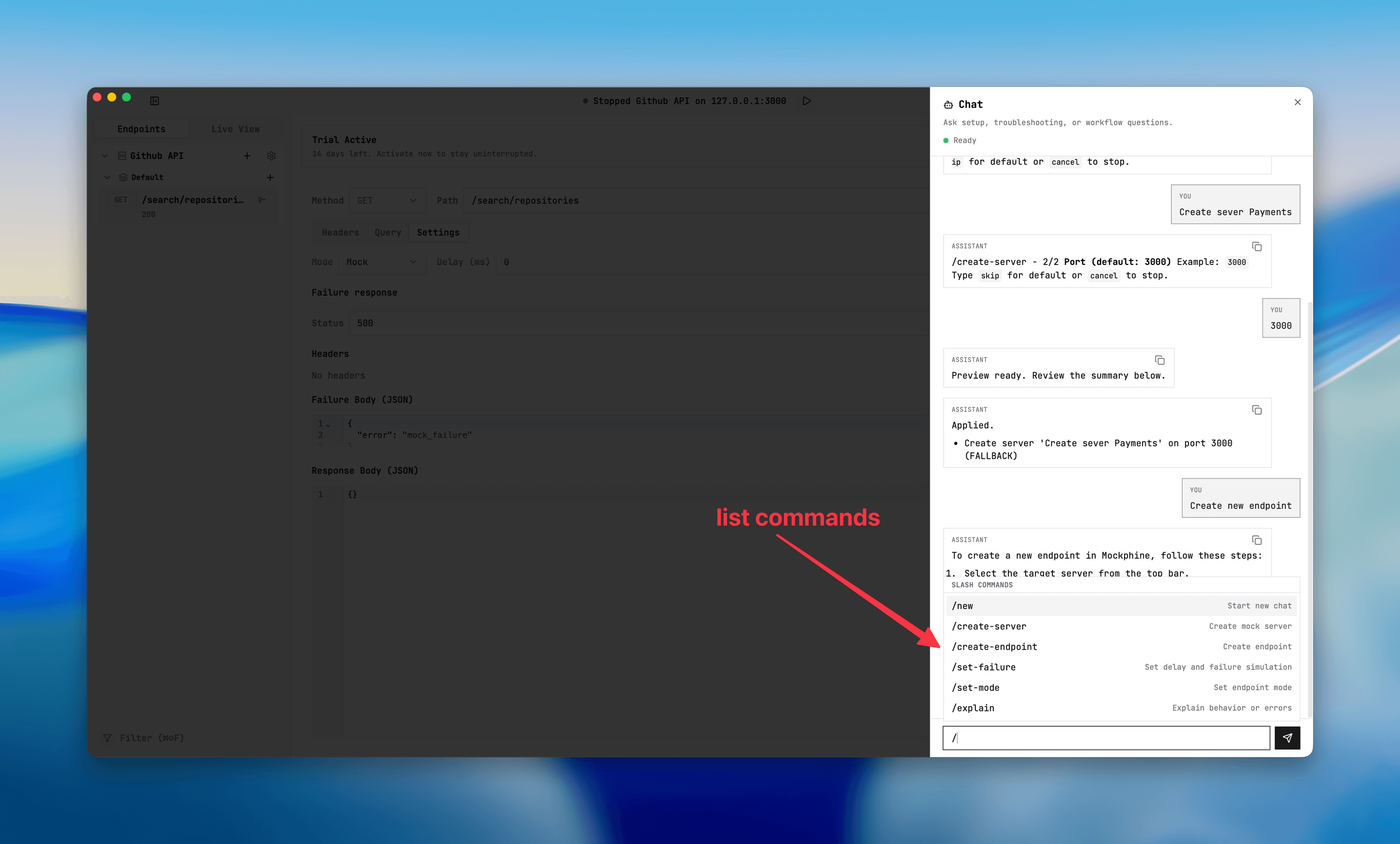
Type / in the input to open command suggestions. Use mutating commands for guided changes and /explain when you only want guidance with no workspace edits.
/newresets chat state and starts a new conversation./create-servercreates a new mock server./create-endpointcreates an endpoint and lets you finish early withdoneor/preview./set-failuresets delay/failure simulation for an endpoint./set-modesets endpoint mode (MOCK/PASSTHROUGH/DISABLED)./explain ...asks for non-mutating guidance.
If activation is not complete, /create-server will open the activation prompt instead of applying changes.
Preview and apply workflow (safe path)
- Start a slash command (for example
/create-endpoint). - Answer clarifying questions in chat.
- Use
doneor/previewwhen you are ready. - Review the preview plan summary and changed values carefully.
- Click Apply or Cancel (or type apply/cancel).
No partial apply is performed when preview validation fails. If workspace state changes after preview, regenerate preview before applying.
When to use chat vs manual UI
- Use chat when you want guided setup, troubleshooting, or a preview before editing.
- Use manual UI when you already know the exact field you want to change quickly.
- Use
/explainfirst when you want to understand behavior before editing.
Natural language endpoint creation
If you type a request like “create new endpoint repo details”, the assistant can infer a likely method/path, ask for confirmation, and then build a preview you can apply.
AI Help Chat panel
Screenshot
AI chat with slash commands, question prompts, and preview/apply summaries.