How to
Settings and shortcuts
Use Settings to make daily API mocking predictable: appearance, AI model credentials, hotkeys, updates, license, analytics, and diagnostics controls all live in one place.
Open Settings
- Click the gear icon in the top-right toolbar (or use
Cmd/Ctrl + ,). - On macOS, Settings opens in a dedicated native window. On Windows, it opens in the app dialog.
- Choose the tab you want to configure, then save changes if prompted.
Settings sections
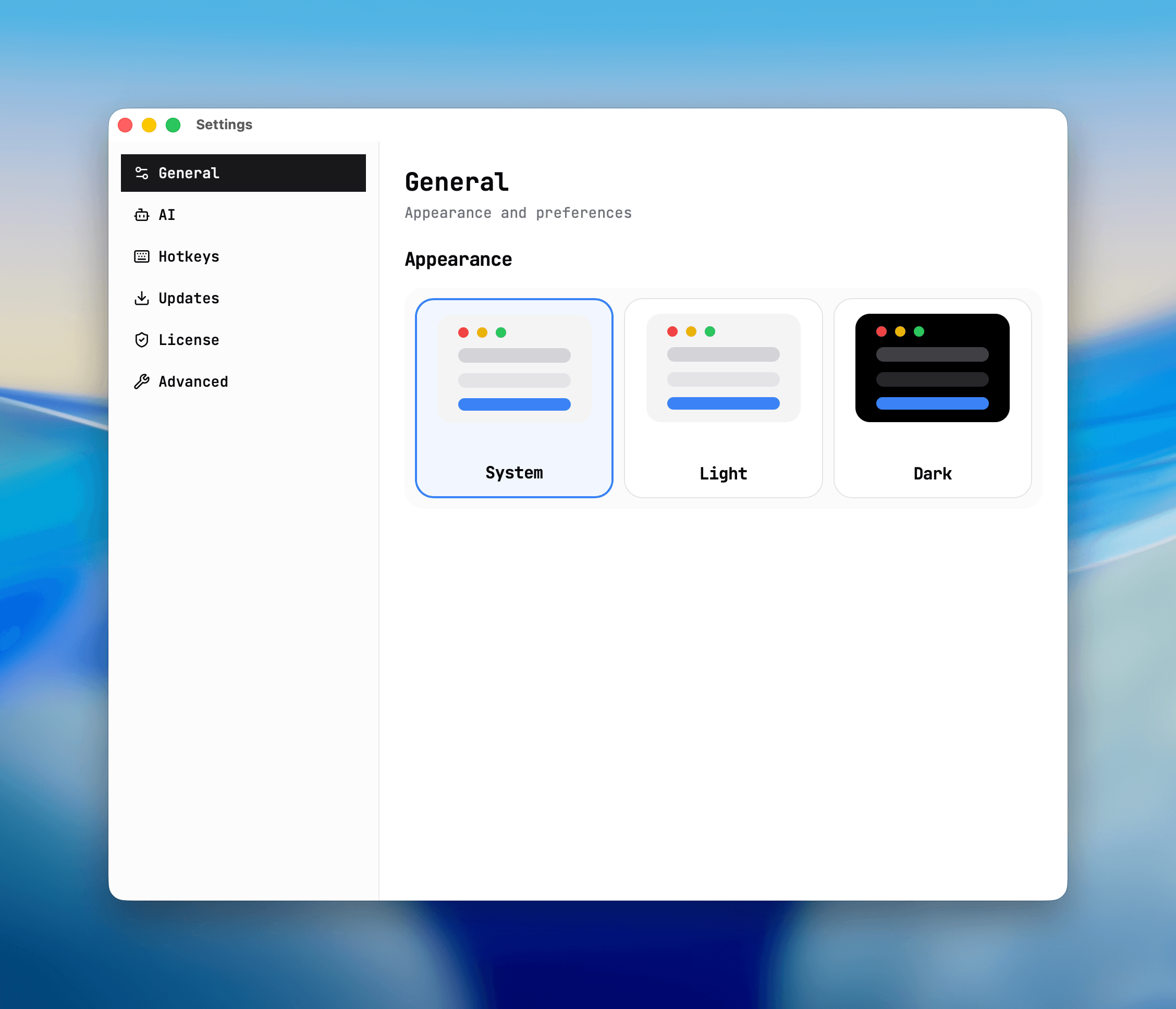
- General: appearance mode and preference defaults.
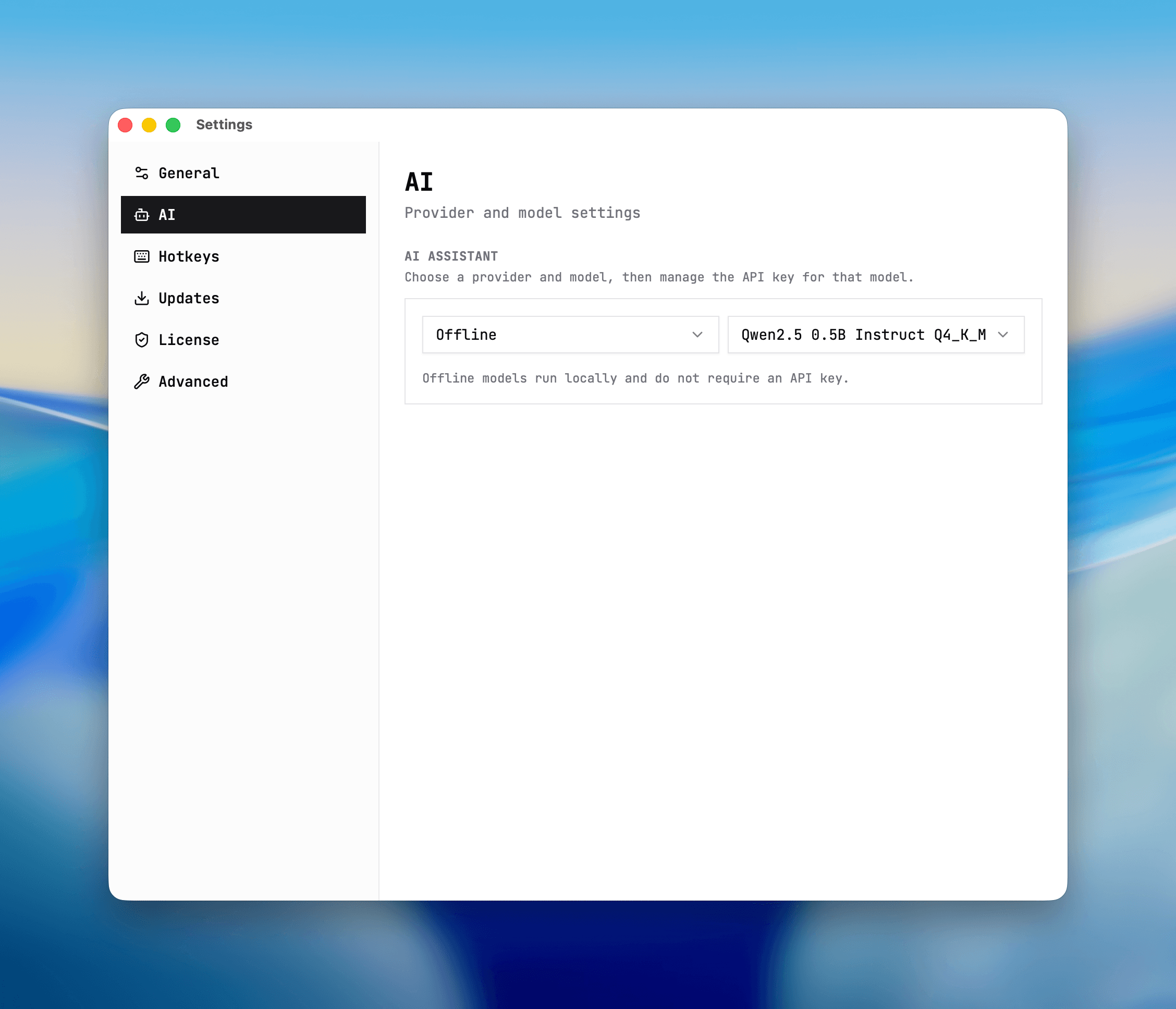
- AI: provider/model selection and secure API key management for the selected model (Offline, OpenAI, Claude, Gemini, Grok, or Kimi).
- Hotkeys: customize app-wide shortcuts.
- Updates: auto-update controls.
- License: activation status and key entry.
- Advanced: analytics and safe diagnostics preferences.
Recommended first-time setup (5 minutes)
- Set appearance mode in General so the app stays readable in your workflow.
- Review Hotkeys and customize the ones you use most often.
- Open License and activate your key (or start a subscription trial from the activation prompt) so protected actions are unlocked.
- If you plan to use AI Help Chat, open AI settings, choose the exact provider/model, then save the API key for that model.
- Decide analytics/diagnostics preferences in Advanced before broader team usage.
Need the full flow? Follow Activate and license.
License activation paths
- Start a monthly subscription with a 7-day free trial.
- Buy a one-time Standard or Personal license.
- Enter an existing Lemon Squeezy license key + license key.
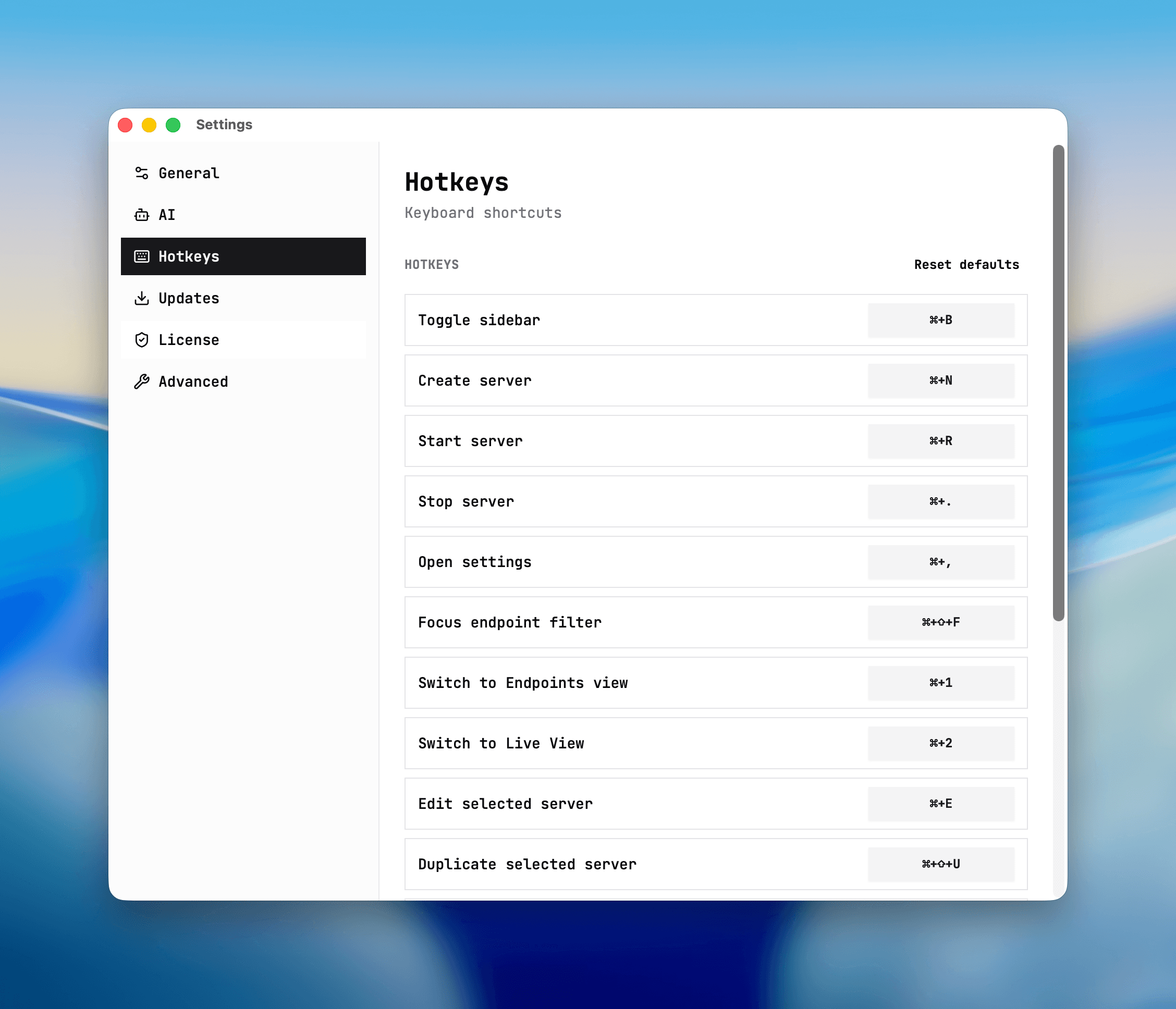
Default hotkeys
Cmd/Ctrl + B: toggle sidebar.Cmd/Ctrl + ,: open Settings.Cmd/Ctrl + Shift + F: focus endpoint filter.Cmd/Ctrl + 1: switch to Endpoints view.Cmd/Ctrl + 2: switch to Live View.Cmd/Ctrl + N: create server.Cmd/Ctrl + I: import OpenAPI (empty state).Cmd/Ctrl + Shift + C: create collection.Cmd/Ctrl + Shift + N: create endpoint.Cmd/Ctrl + Shift + G: create folder.Cmd/Ctrl + Shift + D: toggle selected endpoint disabled.Cmd/Ctrl + R: start server.Cmd/Ctrl + .: stop server.Cmd/Ctrl + E: edit selected server.Cmd/Ctrl + Shift + U: duplicate selected server.Cmd/Ctrl + Backspace: delete selected server.Cmd/Ctrl + Shift + I: import workspace.Cmd/Ctrl + Shift + E: export workspace.Cmd/Ctrl + /: open AI Help Chat.Cmd/Ctrl + Alt + B: report bug.Cmd/Ctrl + Alt + Q: ask question.Cmd/Ctrl + Alt + N: request feature.
Hotkey behavior notes
- Most hotkeys ignore text inputs and editable fields so typing is not interrupted.
Cmd/Ctrl + Shift + F(focus endpoint filter) is global so you can jump to filter from almost anywhere in the app.Cmd/Ctrl + Iopens OpenAPI import from empty state when no servers exist.- Hold
CmdorCtrlto reveal hotkey hints across the UI.
Settings examples
General settings
Screenshot
Choose appearance mode and preference defaults.
AI settings
Screenshot
Select provider/model and manage API key behavior for the selected model.
Hotkeys settings
Screenshot
Review and customize keyboard shortcuts for server, endpoint, and navigation actions.